vu: An image / text viewer widget for EdgeTX / OpenTX radios with big screens
von Ulf Schleth
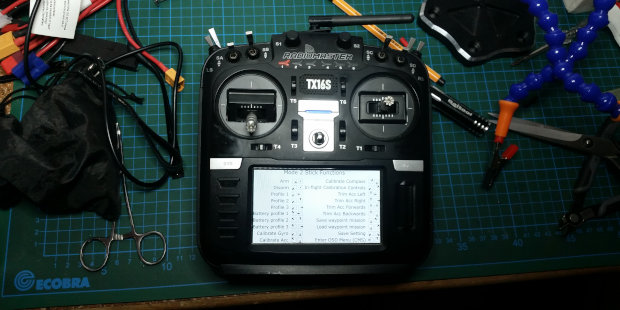
vu: A simple image viewer for EdgeTX radios with big screens. Photo: Ulf Schleth
Do you know that situation when you are on the field but don’t remember the right stick positions to enter the OSD, recalibrate the magnetometer or something else? Or the need to view a checklist, a VTX frequency chart (the ideal one with best information/readability ratio still has to be done, if you have suggestions, post them as comment), QR Codes for your GoPro settings, your pilot’s license or similar stuff? Of course it is possible to wear some printouts with you or store some PDF on your laptop or your mobile, but i thought it would be great to have quick access to it on your radio, which you already hold in your hands. After i installed EdgeTX i had the idea to write a lua widget script which could do exactly that. What i did now. Of course a radio is no laptop; it’s kind of a microcontroller with small memory, but now, as you can play doom on a Jumper T16, it should be possible to view some images on radios with a big screen. But why images? Of course it would be nice to do a simple html viewer or something like that, because you could save memory if you could view text as text and not as an image, but i never wrote a line of lua before and don’t have the time to start such a big project. A text viewer would also be nice, but not without images (update: which is exactly what i included later). Also i am sure, radios and EdgeTX will evolve and make such a script obsolete in the future. So let’s start.
Installation
At first, you should know i am using a Radiomaster TX16S and its touchscreen capabilities. It should be possible to use the script just with buttons, but i don’t have other radios so i couldn’t test it. If you have any wishes or suggestions how i could enhance the script, let me know. Update: Kevin successfully runs the widget on his beautyful Flysky Nirvana.
Download the widget here. Open the zip file and drop the ‚vu‘ folder into the WIDGETS directory on you radio. Now, go into the directory „/WIDGETS/vu/files“ on your radio and drop your texts / images there. I used successfully PNG and JPG images, maybe EdgeTX knows more. If you want to do your radio a favour, scale the images to its screen resolution before. In case of the TX16S, it’s 480 × 272. If you put bigger images into it, the script should scale them for you, but don’t overact, it’s a radio with very limited memory. Maybe it couldn’t handle your 4K images ;) Just keep the filesize as low as possible. Texts > 10 kB will be truncated.
Next, restart the radio, go into your model and press the TELE button. Click onto the ‚+‘ to create a new screen:
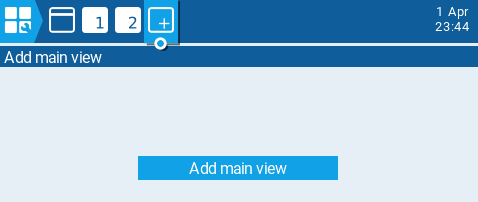
Click on „Add main view“. On the next screen, select the non-tiled fullscreen layout and uncheck the „Top bar“, „Flight mode“, „Sliders“, „Trims“ boxes, so that it looks like here:
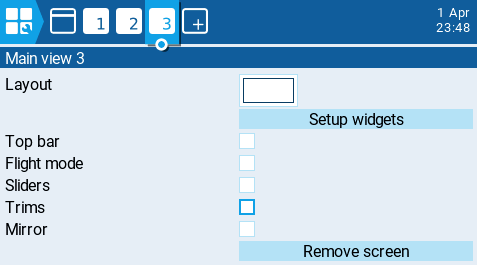
Now, click on „Setup widgets“. Click once on the empty screen and click on „Select widget“. Scroll down until you see „vu“ and click on it.
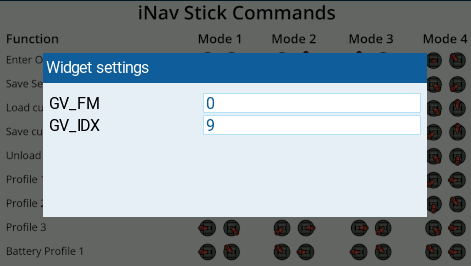
This is what you see now. These are the default values for a global variable. The vu script uses a global variable to store the default image you will when you switch to the widget. By this, you are able to select a default image per widget / model. The default values should be okay in most cases, but you may change them, if you are using this global value for something else, or if you would like to have different default images for more than one screen. You have 9 Global Variables for every flightmode, so you could set GV_FM (flightmode) from 0 to 8 and GV_IDX (global variable) from 1 to 9. Confirm by pressing the return button or touch outside the window. Confirm once more the saving of the screen and you are done with instalation.
Usage
If you are back into your normal model view, you could use the PAGE> button or swipe to the default image. If you want to cycle through your images, you first have to enter „fullscreen mode“. To do that, tap once on you screen or short press enter. Then the screen is selected (at the moment i don’t know why it isn’t automatically focused) and you have to double tap OR long press onto the screen and relase OR long press the enter button to switch into fullscreen mode. Now you can swipe the images or use the PAGE> <PAGE buttons to navigate through the images. The last image you see will be the first you’ll see if you come back to this screen. Before you go back otherwhere you have to leave fullscreen mode. Do that by double tap again or long press RTN. Tapping and swiping doesn’t work 100% reliable, maybe i could get rid of that some day.
Programming
As i said, i am new to lua and new to write scripts for radios. To save memory i had to do a „garbage collection“ every time after a new image is load. A thing i didn’t had to do since the 1980’s. But for now, it does what i want and maybe it’s useful for you. Send me your suggestions and useful images and if there will be time, i could include the one or other thing. Also, please share your royalty-free screens!
Notice: You are using this at your own risk. So, if your radio explodes, don’t blame me.
Changelog:
2026-07-27 Improved variable handling so you may use several widgets in the same model, also pimped swipe experience.
2026-08-16 VU is now a text viewer also for txt & md files < 10kB with rendering of a few Markdown Elements for md files. Scrolling is only possible in fullscreen mode. Also, the zip file contains some default images now.
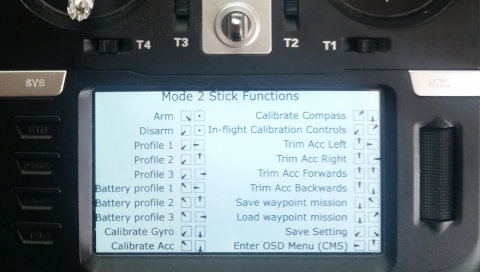
use vu to display useful information like stick commands …
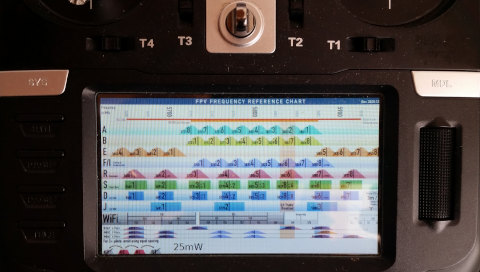
… a FPV VTX Frequency Reference Chart …
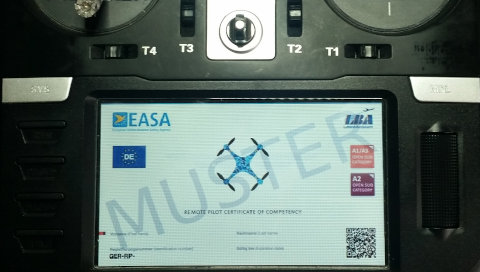
… your flyer’s license …
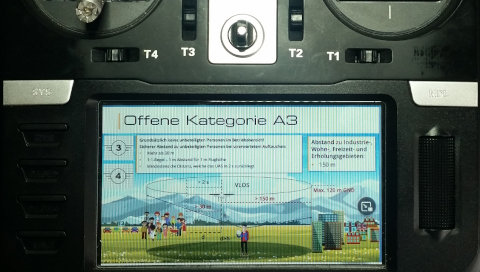
… some other cheatsheets …
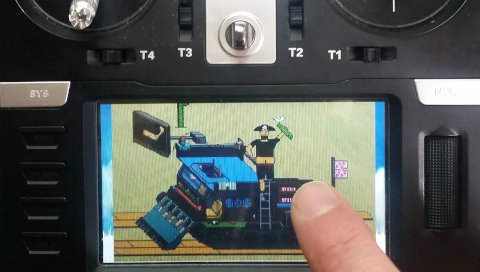
… or just for some random cat pics or whatever other crap you like.
If you are looking for something you could store text information on a radio with a small b/w screen, try out Clemens‘ EdgeTX Notes unfortunately such radios don’t support widgets yet.
And finally, many thanks to Painless360, who linked to vu in one of his videos:

Volker schrieb am 18 Aug. 2026 um 2:01 p.m. 
Hallo U.,
es wäre schön, wenn dieses Script für den größeren Screen der RX16S MK3 angepasst verfügbar würde.
Ist das möglich?
Danke, Volker
Ulf Schleth schrieb am 19 Aug. 2026 um 10:51 p.m. 
Hallo Volker, eigentlich sollte das Script bereits auf Deiner MK3 funktionieren, es liest die Bildschirmgrössen aus der Funke. Wenn das nicht geht, könntest Du mir ein Foto vom Bilschirm schicken damit ich mir mal ansehen kann wie das bei Dir aussieht?
Volker schrieb am 22 Aug. 2026 um 8:43 a.m. 
Hallo Ulf,
ja, es funktioniert einwandfrei – mein Fehler war, nach dem Aufruf nicht länger den scrollbar-Button zu drücken.
Hab ein paar willkürliche Screenshoots auf 800x480pix verkleinert und auf den Sender geladen. Es schrollt sich zäh, aber das war zu erwarten. hab die Bilder als jpg und als png gespeichert, beides geht ohne merkliche Geschwindigkeitsänderung.
Bei der Muster-Textdatei ist der Übergang nach einer Schriftgrößenänderung nicht ganz sauber, scheint mir.
Danke für die Entwicklung, Dein Programm wird mir beim Fliegen in Zukunft helfen!
LG Volker